Turn an old laptop into a home server: check it before you flash it
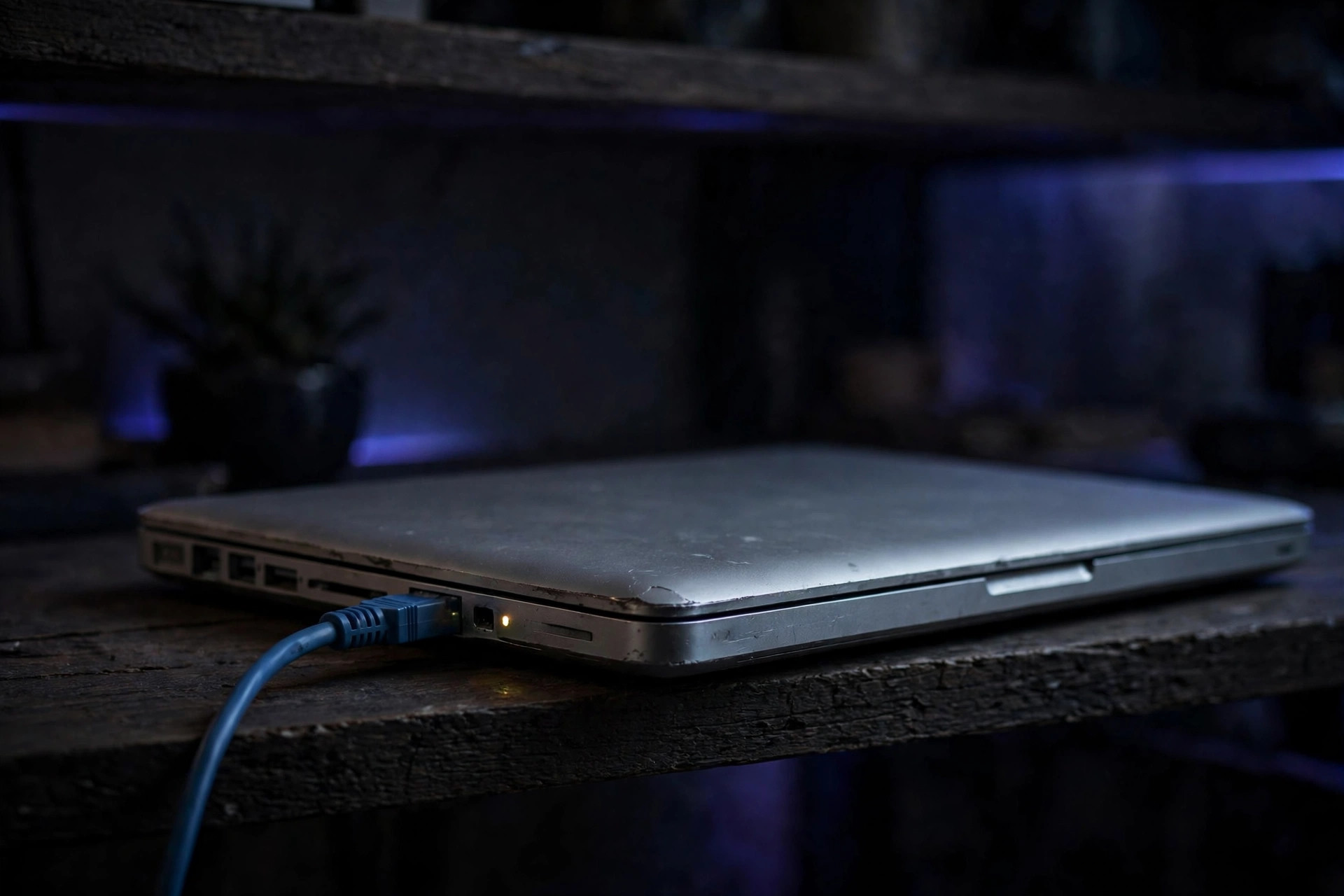
A retired laptop is the cheapest possible home server: free, quiet, and sipping power. But 24/7 duty is brutal on weak hardware, a failing drive, a swelling battery, or clogged thermals will kill your "free" server in months. Check the machine for 30 minutes first.
Should this laptop become a server? The 2-minute triage
- RAM: 8 GB or more. 4 GB handles light duty (ad blocker, file sharing) but not virtual machines.
- Storage: an SSD is mandatory. A spinning drive is slow and fragile under 24/7 use.
- Cooling: fans spin, vents clear. Overheating only gets worse running nonstop.
- Battery: not swollen. If it's puffy, stop, remove it or recycle the machine. Most laptops run fine on wall power.
Broken keyboards and cracked screens don't matter, the machine runs headless. Swollen irremovable batteries, soldered 4 GB RAM on weak chips, or heat shutdowns are retire signals.
The 30-minute health check
Do these in order, before you flash anything:
- Check the drive's health. Boot the laptop's current OS
and run its drive-health tool (CrystalDiskInfo on Windows,
smartctlon Linux). Look for reallocated sectors and overall health status, a drive already reporting problems has no business holding your data 24/7. Keep drive-health monitoring running permanently; it's how you get warned before a failure, not after. - Inspect the battery. Power off and look for any bulging. Swollen means stop, remove it or recycle the machine. Merely old and weak is fine; a server lives on wall power.
- Check thermals. Blow out the vents, confirm fans spin up under load, and watch temperatures during 10 minutes of heavy use. Persistent thermal throttling needs new thermal paste or a cooling pad first.
- Update everything first. Before judging the laptop "too slow," update its OS and browser. Many sluggish old machines just need current software.
What success looks like: drive health "good" with zero reallocated sectors, no battery swelling, stable temperatures under load. Now the machine has earned the install.
Picking your OS
| Proxmox VE | Debian + Docker | |
|---|---|---|
| Best for | Learning virtualization; running VMs + containers | Maximum services on minimum RAM |
| RAM needed | 8 GB+ recommended | Comfortable on 4 GB |
| Management | Web UI for everything | Command line + compose files |
| Overhead | Higher (full virtualization stack) | Lower (containers share the kernel) |
With 8 GB or more, Proxmox VE is the natural pick, free, with a web interface for the whole machine. On 4 GB, skip the hypervisor and run Debian with Docker directly; you'll fit far more services in the memory.
Installing Proxmox: the laptop-specific steps
- Download the Proxmox VE ISO and flash it to a USB stick with Rufus or Balena Etcher.
- Boot the laptop from USB (change the boot priority in BIOS/UEFI).
- In the installer: accept the EULA, select your SSD as the target disk, set country/timezone and a root password.
- Set the hostname as a fully qualified domain name,
.home.arpais the convention if you own no domain. - Assign a static IP on your LAN. The web interface lives
at
https://<that-ip>:8006, you don't want it moving. - Connect via Ethernet cable, not Wi-Fi, wireless is unreliable for server duty and complicates Proxmox networking.
After install, switch to the no-subscription repositories so updates work without a paid license, the standard homelab setup.
The four laptop gotchas
1. The lid. Close it and the machine suspends, killing
every VM. Edit /etc/systemd/logind.conf and set
HandleLidSwitch=ignore,
HandleLidSwitchExternalPower=ignore,
HandleLidSwitchDocked=ignore, and
LidSwitchIgnoreInhibited=no, then restart
systemd-logind.
2. One network port. Most laptops have a single Ethernet port versus four-plus on enterprise servers. Fine for a starter lab; a USB Ethernet adapter adds a second port later for VLAN or virtual-router experiments.
3. Cooling with the lid closed. Don't smother the machine
in a closed cabinet, it still needs airflow. A shelf with open sides works;
a sealed box doesn't. Install TLP for power management, and check battery
status with tlp-stat -b.
4. Power. Keep it on the charger permanently and label that power brick, laptop bricks are easy to mix up. Keep spare Ethernet cables and power cords from your parts drawer: computer power cords haven't changed in years, and a laptop server always needs one more cable than you think.
What to run first
Start light: an LXC container for network storage (Samba), AdGuard Home for network-wide ad blocking, and an Ubuntu VM with Docker for experimenting. Each teaches a different skill, and none stress an old laptop.
FAQ
Is it safe to run a laptop 24/7? Yes, if it passed the health check, good thermals, healthy drive, no swollen battery.
What if the laptop only has 4 GB of RAM? Skip Proxmox; install Debian and run Docker containers directly.